Showing posts with label iphone. Show all posts
Showing posts with label iphone. Show all posts
Thursday, December 10, 2009
AT&T to limit iPhone data plans?
It seems that AT&T is regretting the unlimited data plans that are provided to all iPhone customers. Due to a small percentage (three percent) of extremely high bandwidth usage customers, the available 3g bandwidth for the entire network is being reduced by 40%. They say this is due to high bandwidth video streaming applications such as CNN's mobile app. As a result of this imbalance, AT&T wants to impose a limit on smartphone monthly bandwidth, such as the one that exists for their connection cards. Will it fly? At this point, who knows. Will there be fallout if it does? Let me say this: When AT&T loses their exclusive hold on the iPhone, I for one don't plan on sticking around.

Monday, November 2, 2009
Endless Racing Game
It may not actually be much fun to mess with in reality, but it makes for a pretty interesting YouTube video. Check out the endless racing game, available on the app store:
Friday, October 30, 2009
Motorola Droid reviews coming in
Engadget has their big review of the new Droid smartphone up, you can reach it here.

It sounds like it has the iPhone beat in areas like messaging, customizing, and sound quality, but otherwise is still playing catch-up. The big draw for me personally is the new Google Navigation software that put a nice dent in Garmin and TomTom's stock yesterday, but that software may yet hit the iPhone as well. We shall see.
It sounds like it has the iPhone beat in areas like messaging, customizing, and sound quality, but otherwise is still playing catch-up. The big draw for me personally is the new Google Navigation software that put a nice dent in Garmin and TomTom's stock yesterday, but that software may yet hit the iPhone as well. We shall see.
Friday, October 23, 2009
GameFly iPhone app live!
The much anticipated GameFly app for the iPhone is live on the app store. The app allows you to keep up to date with gaming news, search for all the relevant info on existing games, and for GameFly members allows GameQ manipulation. All the info is here:
GameFly GameCenter
or watch the video below!
GameFly GameCenter
or watch the video below!
Wednesday, October 21, 2009
Push Gmail on the iPhone
For those of you that are IPhone and Gmail users, its now possible to set up push mail on your phone. What this means is that your mail will show up on your phone as soon as it hits your inbox, instead of the usual 'whenever your phone gets around to checking it.' Heres how, courtesy of the gmail blog:
First, be sure that you have iPhone firmware 3.0 or later. For those of you with the 3G s, this came on your phone. For the rest of you, you can check your firmware version by going to Settings->General->About and looking at the 'Version.' If you need to update you can do so by connecting your phone to iTunes. It will guide you from there.

It would probably be a good idea to backup your iPhone for general purposes before continuing.
Ok, once you're all ready, here's what you do:
1. Open the Settings application on your device's home screen.
2. Open Mail, Contacts, Calendars.
3. Tap Add Account....
4. Select Microsoft Exchange.
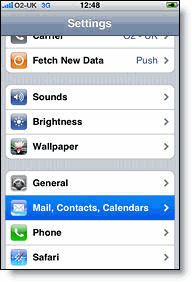
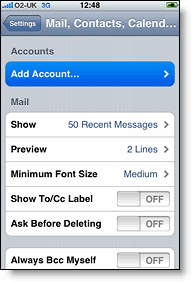
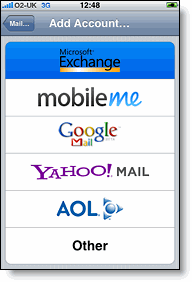
2. Open Mail, Contacts, Calendars.
3. Tap Add Account....
4. Select Microsoft Exchange.
Enter Account Info
5. In the Email field, enter your full Google Account email address. If you use an @googlemail.com address, you may see an "Unable to verify certificate" warning when you proceed to the next step.6. Leave the Domain field blank.
7. Enter your full Google Account email address as the Username.
8. Enter your Google Account password as the Password.
9. Tap Next at the top of your screen.
9a. Choose Accept if the Unable to Verify Certificate dialog appears.
10. A new Server field will appear. Enter m.google.com.
11. Press Next at the top of your screen again.
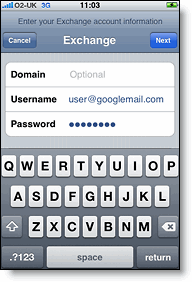
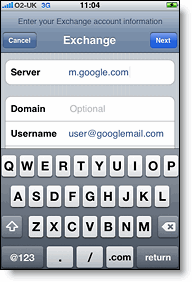
12. Select the Google services you want to sync.
13. Unless you want to delete all the existing Contacts and Calendars on your phone, select the Keep on my iPhone option when prompted. This will also allow you to keep syncing with your computer via iTunes.
If you want to sync only the My Contacts group, you must choose to Delete Existing Contacts during the Google Sync install when prompted. If you choose to keep existing contacts, it will sync the contents of the "All Contacts" group instead.
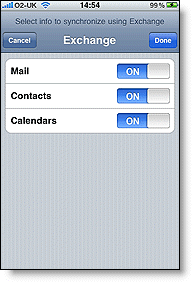
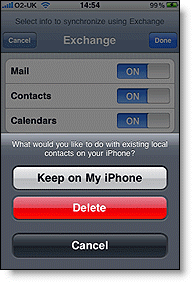
That sets up your gmail account. If you already had a gmail account set up on your phone, you'll probably want to disable it now. To enable the push all you have to do is go to Settings->Mail, Contacts, Calendars->Fetch New Data and turn it on.

Then just restart your phone and you're good to go! Enjoy :-)
Subscribe to:
Posts (Atom)